
I've created a very basic movie showing the construction of a simple racing circuit using the RailWorks toolset.
The steps in the video are :
- Enter editor mode and create a section of track
- Close the loop of track, remembering to use the weld tool.
- Using the offset tool, place two lofts along sections of two of the corners.
- Place a driveable vehicle on the track.
- Spray a new terrain texture down
- Modify the terrain shape
- Enter drive mode, and drive the vehicle along the track
- Enter editor mode, and add some more assets
- Enter drive mode once again and marvel at your new route :)
For this example, the track happens to be tarmac, and the locomotive happens to be a racing car. As I've said many times before, we don't need to restrict this simulation to locomotives on rail track. Use your imagination.
Showing posts with label racetrack. Show all posts
Showing posts with label racetrack. Show all posts
Monday, 5 October 2009

Tuesday, 27 January 2009
Racing Circuit Screenshots
And here are a few in-game screenshots showing the Lotus out on the track. Notice the twin exhaust particle emitters.


Thursday, 22 January 2009
How to...Use the Offset Tool
This tool allows a loft to be 'offset' by a set distance, and placed in parallel with an existing loft. This is very handy for getting multiple lofts in perfect allignment, even when the original loft has complex curves in it.
Method
- Place a loft in your route
- Using the 'select' tool, highlight a section of loft
- Now click on the 'offset' tool
- Two new gizmos appear either side of the original loft, at a specified distance (which can be changed)
- Choose a new loft from the browser book
- Click on either of the two new gizmos (left and right of the original loft) depending on which side you wish your new loft to appear
- The new loft will now appear in the correct place
Your new loft will now be placed at an 'offset' distance from the centre of the original loft and will follow for the length of the highlighted section of the original loft.
In this example I wanted to create a simple racing circuit using a road loft.
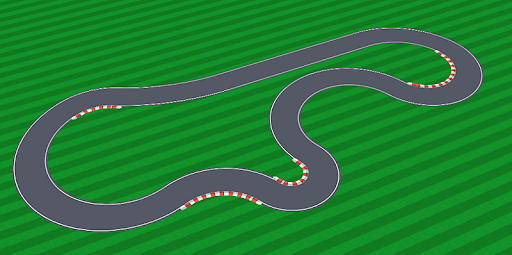
I have also created a loft to represent a rumble strip to be placed on the inside of sharp corners. This loft also has 'start' and 'end' geometry pieces to cap-off the ends of the rumble strip.

Method
- Place a loft in your route
- Using the 'select' tool, highlight a section of loft
- Now click on the 'offset' tool
- Two new gizmos appear either side of the original loft, at a specified distance (which can be changed)
- Choose a new loft from the browser book
- Click on either of the two new gizmos (left and right of the original loft) depending on which side you wish your new loft to appear
- The new loft will now appear in the correct place
Your new loft will now be placed at an 'offset' distance from the centre of the original loft and will follow for the length of the highlighted section of the original loft.
In this example I wanted to create a simple racing circuit using a road loft.

I have also created a loft to represent a rumble strip to be placed on the inside of sharp corners. This loft also has 'start' and 'end' geometry pieces to cap-off the ends of the rumble strip.

Subscribe to:
Posts (Atom)